|
Create the 3D meshes for the avatar's body
parts in a modeling program.
Read the file into AccuTrans 3D.
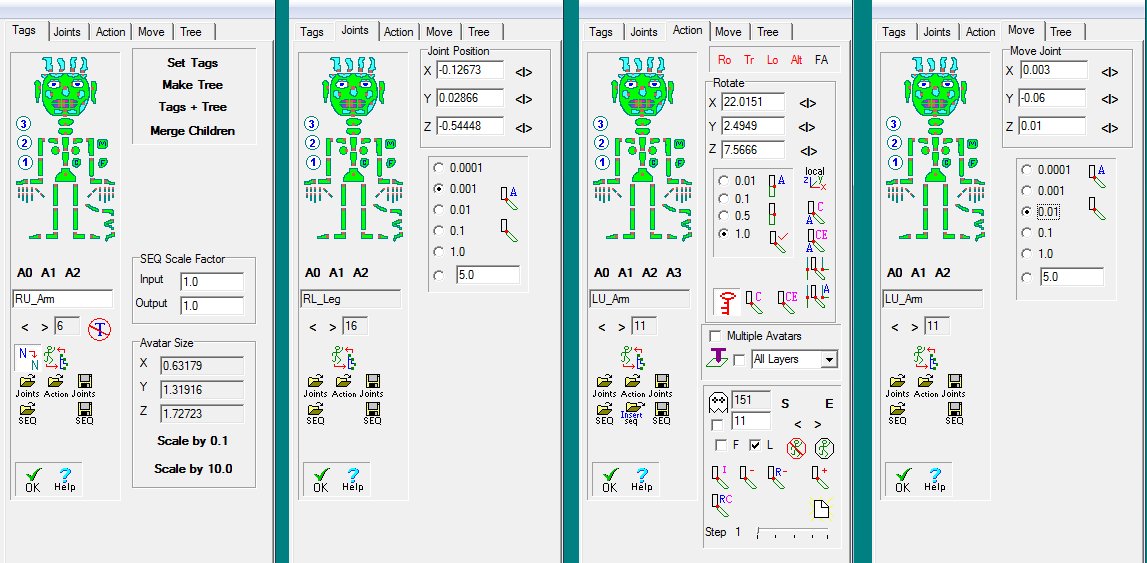
Select a layer for a body part and then click on a button
with a picture of the body part on it. AccuTrans 3D
changes the layer name and adds the correct RWX tag.
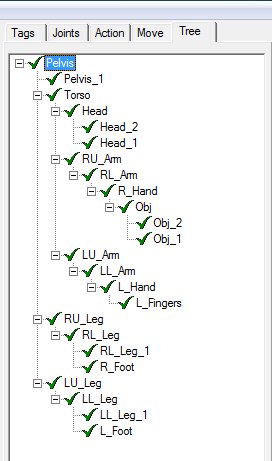
After all layers have been identified press a button and
the avatar hierarchy is made for you.
Use the mouse and Windows 'drag and drop' procedures to
reposition the nodes in the tree if you do not want the hierarchy
for a humanoid avatar.
Press a button and the position of all joints, for a humanoid
avatar standing erect, is calculated.
Select each body part and click on a few buttons to set
the joint exactly where you want it.
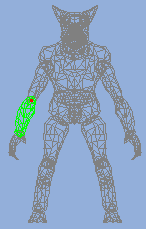
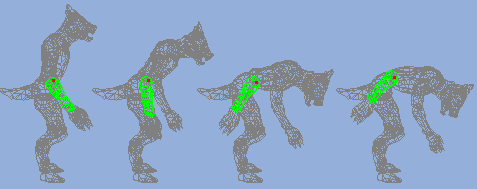
The selected body part is shown in green and the joint
position is shown in red.
Save the avatar as either RenderWare .RWX or trueSpace
.COB files for use with the Active World's browser.
Also the avatar can be saved as .3ds file for import
into Life Forms (full version and not the LE version)
or as a VRML 2.0 .WRL file or as a .MTX file
for use in Viewpoint Scene Builder or as a DirectX file.
The correct joint names are automatically written to the
file for you.
|